One of the most annoying, tedious and complicated tasks in retro development, at least for me, is setting everything up so that you can actually start programming. We do not know which tools to use, and if we ask the “experts” for advice, we get different answers because “everyone has their own way of doing things”.
There are many different possible setups depending on each person’s experience, priorities and quirks, so if you allow me one piece of advice: start with the simplest option, and once you have some experience, adjust it to suit your needs.
ZX Basic Studio
ZX Basic Studio is a free, open-source, cross-platform IDE (Integrated Development Environment) available for Windows, Linux and Mac. Initially developed by Dr.Gusman, it continues to evolve thanks to contributions from the community.
Below are some of its main features:
- Integration with the compiler (F5 to run and F6 to debug)
- Code editor with syntax highlighting, auto-completion, contextual help, etc.
- Integrated emulator for ZX Spectrum 48K, 128K and +2 models
- Step-by-step debugging through BASIC and assembler instructions, CPU register values, BASIC variables and memory
- Integration with emulators for ZX Spectrum Next (CSpect, ZEsarUX and MAME)
- GDU and font editor
- Sprite editor with import from external images
- Tape editor (.tap)
- RAM disk editor for 128K models
- Colour palette editor for ZX Spectrum Next
And more features currently under development… with others still to come.
ZXBSInstaller
ZXBSInstaller is a tool that forms part of ZX Basic Studio, and its purpose is to install, update and configure the main tools we need to develop our Spectrum programs.
Among the tools it can install, update and configure are:
- ZX Basic Studio Installer (ZXBSInstaller): the installer itself; if it detects that a newer version is available, it will offer to update itself.
- Boriel ZX Basic Compiler: the compiler, which is therefore the main and indispensable tool needed to compile.
- ZX Basic Studio: the IDE that allows us to write and debug our code, design fonts and sprites, among other things.
- Tools for ZX Spectrum Next development, including:
- MAME emulator, which allows launching ZX Spectrum Next emulation
- ZX Spectrum Next boot ROM
- ZX Basic Studio plugin for MAME
- ZX Spectrum Next SD card image
- “hdfmonkey” disk image editor
One of its main advantages is that it configures ZX Basic Studio automatically, greatly reducing the time and problems required to start working.
Installing the installer
The first step is to download the latest version of ZXBSInstaller from the official GitHub repository: https://github.com/boriel-basic/ZXBasicStudio/releases
We must select the version appropriate for our operating system in the “Assets” section.
Once downloaded, we create a working folder where all the tools will be installed. As an example, we will use a folder called “zxtools”. We then extract the downloaded .zip file into a subfolder inside “zxtools”, for example “zxtools/zxbsinstaller”.
Once extracted, we look for the file “ZXBSInstaller.exe” (Windows) or “ZXBSInstaller” (Linux and Mac), and run it by double-clicking.
⚠️ Mac warning
On Mac, a warning will probably appear indicating that ZXBSInstaller could not be verified to be free of malicious software.

We need to click “Open” (do not confuse this with “Move to Bin”), go to “Settings → Privacy & Security”, look for ZXBSInstaller and authorise its opening by clicking on “Open Anyway”, then follow the steps to confirm the authorisation.

⚠️ Windows warning
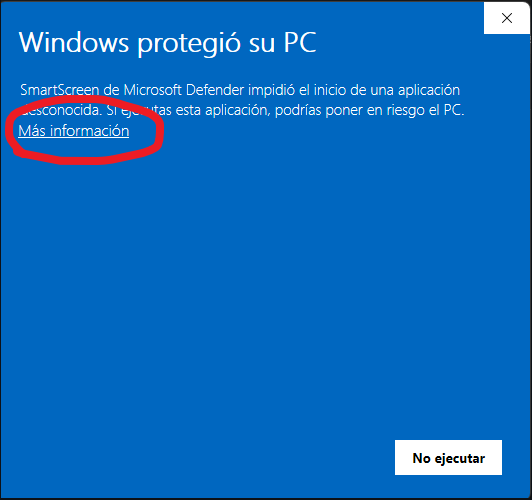
On Windows, a “SmartScreen” message may appear with a warning similar to the one on Mac. In this case, click on “More info” and then on “Run anyway”.
Installing the tools
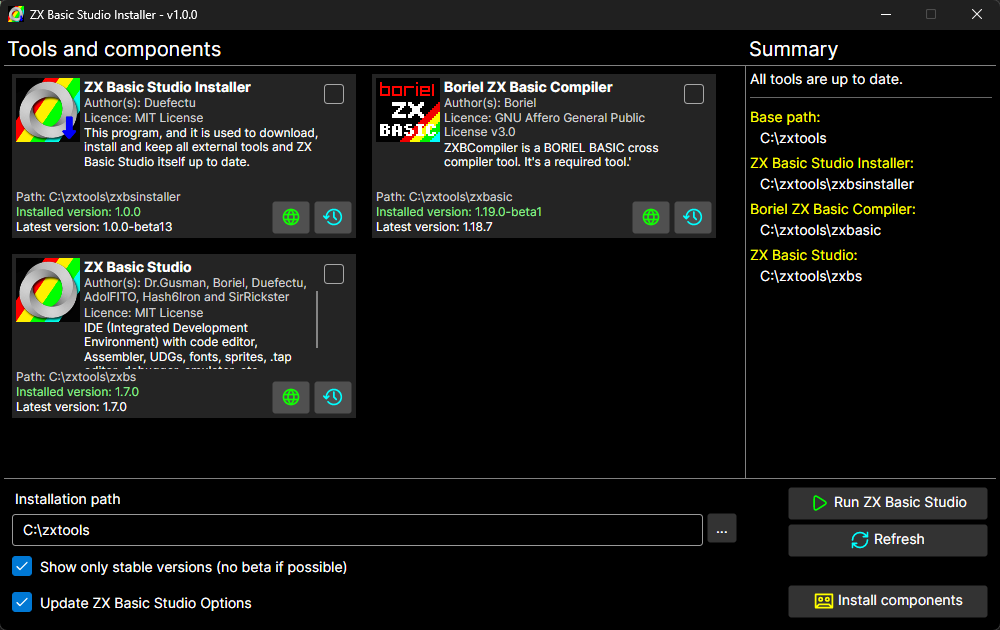
When ZXBSInstaller is run, it scans the tools installed inside the folder where the installer is located, in this case “zxtools”. It determines which tools are installed, their versions, which version is available on the Internet, and based on this information it will recommend which tools to install.
At the bottom we will see three configuration options:
- Installation path: base folder where the tools will be installed.
- Show only stable versions (no beta if possible): only shows stable versions, ignoring beta versions if stable ones exist.
- Update ZX Basic Studio Options: this option automatically configures ZX Basic Studio.
Normally we can leave all these options with their default values and simply click “Install components”.
ZXBSInstaller will download, install and configure the selected tools.
📂 Folder structure
ZXBSInstaller uses a base folder to install all the tools. Following the example of the “zxtools” folder, the directory tree would look like this:
zxtools
- 📂 downloads -> Temporary folder where applications are downloaded
- 📂 hdfmonkey -> SD card image manager for Next
- 📂 mame -> MAME emulator, ZXBS plugin and Next ROM
- 📂 nextsdimage -> Next SD card image
- 📂 zxbasic -> Boriel Basic compiler
- 📂 zxbs -> ZX Basic Studio
- 📂 zxbsinstaller -> ZXBSInstaller installer
In addition to these folders, I recommend creating a “projects” folder for your programs.
Previous versions
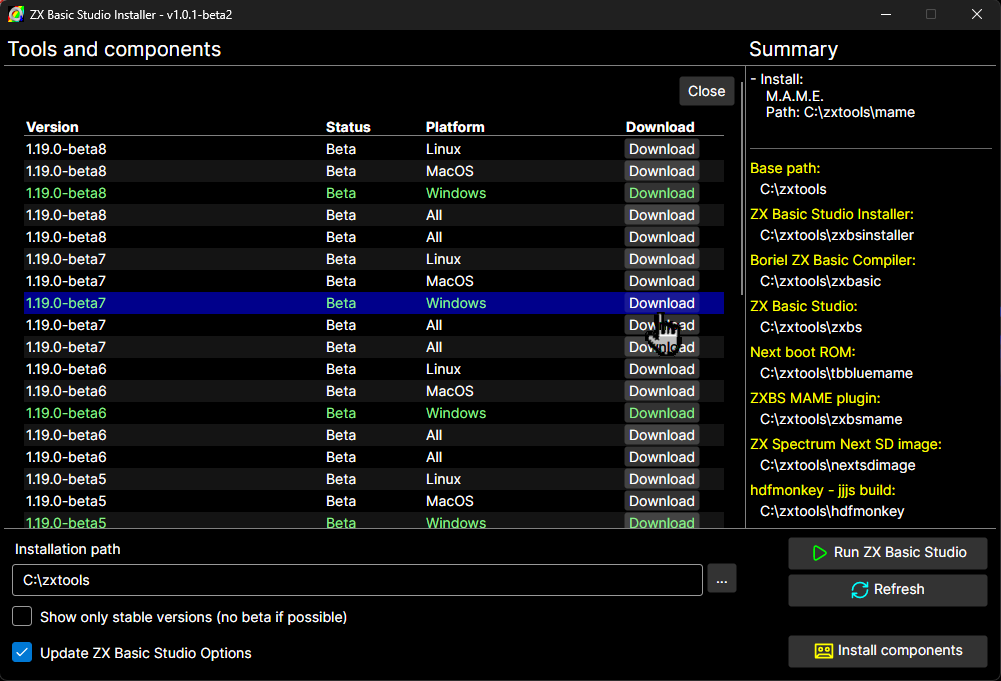
ZXBSInstaller also allows installing older versions of some tools by clicking on the clock button. All available versions for download are shown, along with a “Download” button that allows installing whichever version we want.
Alternatives
As mentioned at the beginning of this document, the fastest and simplest way to start programming for the Spectrum with Boriel Basic is to use ZXBSInstaller to install and configure your system.
However, besides ZX Basic Studio, there are other alternatives. One of them is using a plain text editor such as “Notepad”, a more advanced one like “Notepad++”, or the more advanced “Visual Studio Code”, which is one of the most interesting options.